How To: List the lines that exist in one file and not another in Linux or Windows Command Line

This solution uses grep.

Grep is a search tool that exists by default in just about every Linux installation. You can also search Google for Windows Grep.

for a Demo, Here is FileA.txt

1. In Both
2. In Both
3. In Both
4. In File A Only
5. In Both
0. Out of Order In Both
-1.  Out of Order In A Only
In A only

Here is FileB.txt

1. In Both
2. In Both
3. In Both
4. In File B Only
5. In Both
0. Out of Order In Both
-1.  Out of Order In B Only
In B only

To show lines that only exist in File B and not in A. Do this:

# grep -v -xFf FileA.txt FileB.txt

4. In File B Only
-1.  Out of Order In B Only
In B only

To show lines that only exist in File A and not in B. Do this:

# grep -v -xFf FileB.txt FileA.txt

4. In File A Only
-1.  Out of Order In A Only
In A only


In windows, Grep you can drop the capital F from the command line. But it really shouldn’t matter.

The command line arguments are:

-v = Reverse the compare so you get what doesn’t match instead of what does

-x = Compare entire lines at a time instead of characters

-F = Do not parse the contents of each line for any mid-line regex commands

-f = Compare the specified files


Hope that helps someone!

Favorite Windows Vista Features: Open Dialog Internet Integration

Ok everyone loves to bash Vista. It’s the in thing. I get it. I run vista with the User Access Control (UAC) turned off. Once that is done, it is modern version of Windows XP with some nice features built in. Now some of these have been made available in a limited fashion in XP service packs, like this first example: the integration of the internet into the Open Dialog box.

This is one of my favorite Vista features.
I’ll demonstrate in this video:

[kml_flashembed movie="http://www.thecodecave.com/mov/Brian_Layman_Favorite_Vista_Feature_Open_Dialog_1.swf" width="800" height="618"/]

Tip Tuesday: Manipulating Graphics files for your blog

When working with graphics files on your blog, it is always smart to optimize their size for their targetted use. A simple corner picture does not need an original size of 8.1 mega pixels. On a windows machine, MS Paint can handle that sort of transformations, with a little pain and bloodshed. I’ve also written and posted here a console app to do the dynamic resizing. Gimp is awesome, but it is over kill.

I strongly encourage Windows users to check out Infranview. You might look at the site and say “Oh it is just a viewer”, but it is soooooo much more than that. Though it is the one of the best picture viewers out there, it also handles basic graphic manipulation better than most other software out there, even the pro stuff.

File resizing is very simple. However following their “It is trying to be simple for beginners and powerful for professionals.” goal, it allows you to, in the advanced menu, choose from various resampling methods in case the image just looks wrong when you resize it. Most programs use the 1 method the programmer preferred and you are stuck with it.

You can get it here:
http://www.irfanview.com/

and once you load the plugins from here:
http://www.irfanview.com/plugins.htm

(I prefer this mirror for downloads.)

You’ve got a powerful graphics manipulation tool that can even accept any photo shop 8bf plugins that you have lying around.

(BTW xnview is a infranview knock off, but it does have pocketPC and Smartphone support and works nicely as a viewer on those platforms)

New keyboard shortcuts in Windows Vista

OK this is a MAJOR shout out to Daniel Wischnewski for teaching me some new keyboard shortcut.

Did you know that the first ten (upper) programs in the Quick Launch area are accessible with the [Win]+[1] through [Win]+[0] key combos?

For example in my setup [Win]+[1] is ZTreeWin.  [Win]+[4] is the Vista Snipping Tool (C:\Windows\System32\SnippingTool.exe Try it!!!). [Win]+[0] is the DOS prompt.

Brian Layman’s Quick Launch bar

Pretty cool Eh?

Do you know all of my icons? What do you keep on your quick lauch bar?

Attention Windows Web Developers: Safari for Windows is here!

In working with websites, the only major browser I’ve not been able to test under was Safari.  I’ve got IE6, IE7, Firefox, Opera and Mozilla installed and even Konqueror on dual boot on my desktop.  But I never could test for Safari.  That’s now changed!

You can download Safari for Windows XP & Vista here: http://www.apple.com/safari/download/

Unfixed Outlook & IE hole allows XP&Vista user promotion to Admin

I’d already decided not to post about this, but then learned more.  There is no fix.  No work around. I’m vulnerable and at this point, I can’t do anything about it.  Even on Vista, just pre-viewing an HTML email in Outlook 2002+ means you are vulnerable.   An that’s not just OE but the REAL Outlook used is offices everywhere.  You can’t turn off Java Script, or Active X or anything.  You don’t even crash.  Your system is just pwned…

What does MS have to say?

Microsoft is investigating new public reports of attacks exploiting a vulnerability in the way Microsoft Windows handles animated cursor (.ani) files. In order for this attack to be carried out, a user must either visit a Web site that contains a Web page that is used to exploit the vulnerability or view a specially crafted e-mail message or email attachment sent to them by an attacker. […] Upon completion of this investigation, Microsoft will take the appropriate action to help protect our customers. This will include providing a security update through our monthly release process or providing an out-of-cycle security update, depending on customer needs.  Microsoft is actively monitoring this situation to keep customers informed and to provide customer guidance as necessary. – http://blogs.pcworld.com/staffblog/archives/003973.html

For Outlook, the only fix Microsoft has is “read all e-mail in plain text rather than HTML”.  I know Outlook REALLY well, but I don’t remember a setting that does that.  There’s no solution for Internet Explorer.  Basicaly any application, even ones that you might have written in Delphi that happen to have a TBrowser component in them that is allowed access to the outside world, is vulnerable.  So if you have any custom email programs you’ve written, watch out!

The basic avenue of attack  is to display a customized animated cursor.  Once you open that email or browse through that site,  they gain access to your computer.  There is no crash, it just instantly happens.  The code can then promote the Limited Access account you are using (because we all only use admin accounts when we need to… Yeah, right!) to an Adminstrator account, and then do whatever they please, from rootkits to personal webservers.  Oh! and of course don’t forget that an “animated” cursor can appear to be static. It can look exact your normal cursor. 

In the article ” Windows Zero-Day Flaw ‘Very Dangerous,’ Experts Say Bug affecting IE and Windows is potentially very damaging, and there’s no quick fix in sight. “, by Gregg Keizer of Computerworld, there are a couple of good quotes.

“This is a good exploit,” Roger Thompson, CTO of Exploit Prevention Labs

“According to Adrian Stone, an MSRC program manager, Outlook 2007 is invulnerable, as is Vista’s Windows Mail–as long as users don’t reply or forward the attacker’s messages. The SANS Institute’s testing, however, contradicted Microsoft; by SANS’ account, Outlook Express in Windows XP, Windows Mail in Vista, and Outlook 2003 in any version of Windows puts users at risk when they simply preview a malicious message. They don’t have to actually open the message to be in danger of an infection.”

“Worse, we know there are vulnerabilities that can be exploited in Vista to escalate privileges,” said Brown. “All you need is access to the system, which this [animated cursor] provides.” Once inside, said Brown, the attacker could up rights from even a safer local user to administrator privileges. “Then, all bets are off.”

UPDATE:

 It seems that eEye Digital Security is taking advantage of the situation and has release a patch if you have their 1 year free personal addtion intrusion software:

Patch Location: Download Now!
Patch Version: 1.0
Patch Source Code: View

The patch prevents the loading of any non local ani files.  Well, my intrusion software is somewhat out of date anyway.  I’ll give it a try.  I’ll let you know if this is another “Scare you till you upgrade” program that is hard to remove.

UPDATE #2: eEye Digital Security is incredible.  At first glance, it seems to be professional and high-level.  I think it is actually meant to protect your system and not scare your Aunt Martha into buying more and more additions to it.  I’m impressed.  I’m also sad to say that for the second time since 1985ish when I first got a PC clone (a Compaq Portable Plus with Compaq Dos 2.12 and 10mb HD, if you must know), I actually had a virus detected on any disk or computer in my home.  It was one just reported in the wild for the first time at the end of Feb.  So my current antivirus software, somewhat out of date, hadn’t picked up on it.  Still I guess 2 viruse detections out of all of the stuff I’ve done and all the disks I’ve used and stuff I’ve downloaded, is a pretty good safety record for 2.2 decades.

Microsoft Releases a Vista patch for Delphi 7 support in Vista

ooohhh, I just love this… It’s funny, but won’t be for anyone uninstalling Delphi 7 in order to install Delphi 2007. 

 Just look at the description from one of the linked articles:

After you remove a program from your computer, you can no longer access the CD drive or the DVD drive successfully. The CD drive or the DVD drive does not appear. Or, you receive an error message when you try to access the drive.http://support.microsoft.com/kb/314060/

Isn’t that just cool?  Uninstall a program from a Vista machine and boom: No CD Drive for you! 

Now, Microsoft is a bit vague, so I could be extrapulating too much information from the articles linked to from this topic.  In Microsoft’s language they only say “This update also includes fixes that are contained in update 929427. These fixes improve support in Windows Vista for the following applications: ”  And then it lists a bunch of programs including CDs and multimedia apps and in the very middle is “Delphi 7 Professional”.   If anyone else can find more details on the exact issue, I’ll gladely update this article.

The patch is a bit of a mixed bag since installing the patch can produce problems:

Note After you install this update, a CD device or a DVD device may not work correctly. If you select the device in Device Manager and then view the properties for the device, you may receive the following error message:

The software for this device has been blocked from starting because it is known to have problems with Windows. Contact the hardware vendor for a new driver. (Code 48)

This problem occurs because a legacy application may install drivers that are incompatible with Windows Vista.

It is when you go digging into the issue through 314060  that you can see the symptoms of the problem Microsoft is dancing around:

In Microsoft Windows XP, after you remove a CD recording program or a DVD recording program, or after you remove a different program, you experience the following symptoms:

You cannot access the CD drive or the DVD drive by using My Computer.
One of the following error messages appears when you view the CD drive or the DVD drive in Device Manager:Error message 1

The device is not working properly because Windows cannot load the drivers required for this device (Code 31).

Error message 2

A driver for this device was not required, and has been disabled (Code 32 or Code 31).

Error message 3

Your registry might be corrupted. (Code 19)

You receive an “error code 39” error message.
A message that resembles the following appears in the notification area:

Windows successfully loaded the device driver for this hardware but cannot find the hardware device. (Code 41)

 Delphi 2007 must be in the very helpful “or after you remove a different program” part. 😉

 Anyway the fix is part of the March 2007 Vista update: http://support.microsoft.com/default.aspx/kb/932246

How do you switch from XP to a Vista computer?

Here’s an interesting tool I found:  the Windows Easy Transfer Companion.

 Apparently “Windows Easy Transfer Companion enables you to automatically transfer your most important programs from your Windows XP-based PC to your new Windows Vista-based PC. This way you can become productive on your new PC as soon as possible. Easy Transfer Companion is designed to be used in addition to Windows Easy Transfer—which transfers your data and settings.”

Basicaly it will use the network to transfer a good portion of your registry from one machine to another.  The really funny thing is that it doesn’t seem to care one jot about whether you have the rights to transfer that software…  That kind-of flies in the face of Microsofts rigid activation policy. 

Anyway, here’s the official word: 

Windows Easy Transfer Companion enables you to automatically transfer your most important programs from your Windows XP-based PC to your new Windows Vista-based PC. The software will move more than 100 of the most popular programs, as well as many others that you may have installed. You have complete control over selecting which programs to transfer, so only the programs you care about will move. The software will alert you if some programs may not be able to transfer, or may not transfer with high confidence. Most security software is not able to transfer due to technical reasons.

Easy Transfer Companion is designed to be used in addition to Windows Easy Transfer—which is part of Windows Vista and automatically transfers your data and settings. Connecting your two computers can be done with either an Easy Transfer Cable (available online, from retailers, and from PC manufacturers), or a home or small business network. If using an Easy Transfer Cable, you must first install Windows Easy Transfer on your Windows XP-based PC. By using Easy Transfer and Easy Transfer Companion you will be able to quickly and easily setup your new PC with all the data, settings, and programs that matter to you, so you can be productive on your new PC right away.

Easy Transfer Companion only transfers programs from a Windows XP-based PC to a Windows Vista-based PC. Easy Transfer Companion is currently in Beta, and only available for the US market.

Trigger a hardware detection scan from Delphi, InstallShield, C++, script or Run prompt

In my deployment process, it had looked like I was going to need to detect some changes in hardware and then perform a reboot.
I researched how to do this but it turns ou that I don’t need this code. Into the cave it goes.

You can of course run the “Add New Hardware” wizard manually. Here’s the command line to do just that:
“C:\WINDOWS\system32\rundll32.exe” C:\WINDOWS\system32\shell32.dll,Control_RunDLL “C:\WINDOWS\system32\hdwwiz.cpl”,Detect Hardware

However, what if you want to automate the process.

The information for how to do this is relatively scarce even though there is a technet page about it. Strangely enough the first thing I found was an NSIS script for doing this through that open source instalation program. The strange thing about it is that it was on a WinAMP website (link).

Here’s that code:
[code]
Function ScanForNewHW
SetPluginUnload alwaysoff
StrCpy $1 “”

System::Call ‘setupapi::CM_Locate_DevNodeA(*i .r0, t r1, i r2) i .r3’
System::Call ‘setupapi::CM_Reenumerate_DevNode(i r0, i r4) i .r5’

SetPluginUnload manual
System::Free 0
FunctionEnd
[/code]

Armed with the DLL name, the second thing I found was an Install Shield script (link) that allowed it to be done:
[code]
function ScanForHardwareChanges()
NUMBER devInst, myreturn;
begin
if(UseDLL(WINSYSDIR ^ “cfgmgr32.dll”) != 0)then
MessageBox(“Didn’t load Dll”, SEVERE);
return FALSE;
endif;
myreturn = CM_Locate_DevNodeA(&devInst, “\0”, 0);
myreturn = CM_Reenumerate_DevNode(devInst, 0);
UnUseDLL(WINSYSDIR ^ “cfgmgr32.dll”);
return TRUE;
end;
[/code]

Armed with the DLL name and a possible procedure name, I was able to track down the Microsoft support page about it (link). That page provided a C routine for calling the code. Here it is:

[C]
BOOL ScanForHardwareChanges()
{
DEVINST devInst;
CONFIGRET status;

//
// Get the root devnode.
//

status = CM_Locate_DevNode(&devInst, NULL, CM_LOCATE_DEVNODE_NORMAL);

if (status != CR_SUCCESS) {
printf(“CM_Locate_DevNode failed: %x\n”, status);
return FALSE;

}

status = CM_Reenumerate_DevNode(devInst, 0);

if (status != CR_SUCCESS) {
printf(“CM_Reenumerate_DevNode failed: %x\n”, status));
return FALSE;
}

return TRUE;
}
[/c]

However, I wanted to do this in Delphi. With the correct constant names, I was able to find two references to this routine. The Delphi JEDI project has a provides a routine for loading the DLL that allows these calls to be made and either someone (link) translated Microsoft’s code into a routine for scanning for the hardware or there was a, now gone, JEDI demo project that included this routine. Either way, the French site was the first one I’d found that scanned for new hardware with Delphi.

Here is that code:

[delphi]
procedure SomeProcedure;
// First you need to load the module.
LoadConfigManagerApi;
// Then call a translation of the MS routine
ScanForHardwareChanges;
end;

// Here’s the translation of the ScanForHardwareChanges
function ScanForHardwareChanges: boolean;
var
dev: DEVINST;
status: CONFIGRET;
begin

status := CM_Locate_DevNode(dev, ”, CM_LOCATE_DEVNODE_NORMAL);

if (status <> CR_SUCCESS) then
begin
result := FALSE;
exit;
end;

status := CM_Reenumerate_DevNode(dev, 0);

if (status <> CR_SUCCESS) then
begin
result := FALSE;
exit;
end;
Result := TRUE;
end;
[/delphi]

That routine was picked up on a Russian site (link) and modified to be independent of the JEDI files. However, both of these routines include way more information than is needed.

The process is really simple.
1. Load the DLL
2. Get the location of the two methods you need.
3. Call them (using the appropriate constants
4. Unload everything.

I’ve written my own Delphi routine that does all that and has no extra baggage dragged (drug?) along for the ride..

My all-in-one solution:
[delphi]
{******************************************************************************
ScanForHardwareChanges
by Brian Layman at TheCodeCave.com
******************************************************************************}
function ScanForHardwareChanges: Boolean;
const
CFGMGR32_DLL = ‘cfgmgr32.dll’;
CM_LOCATE_DEVNODE_NAME = ‘CM_Locate_DevNodeA’;
CM_REENUMERATE_DEVNODE_NAME = ‘CM_Reenumerate_DevNode’;
CM_LOCATE_DEVNODE_NORMAL = $00000000;
CR_SUCCESS = $00000000;
var
DeviceNode: DWord;
HCfgMgr: THandle;
CM_Locate_DevNode: function(var dnDevInst: DWord; pDeviceID: PAnsiChar;
ulFlags: ULONG): DWord; stdcall;
CM_Reenumerate_DevNode: function(dnDevInst: DWord; ulFlags: ULong): DWord; stdcall;
begin // ScanForHardwareChanges
Result := FALSE;
HCfgMgr := LoadLibrary(CFGMGR32_DLL);
if (HCfgMgr < 32) then MessageDlg('Error: could not find Configuration Manager DLL', mtError, [mbOk], 0) else begin try CM_Locate_DevNode := GetProcAddress(HCfgMgr, CM_LOCATE_DEVNODE_NAME); CM_Reenumerate_DevNode := GetProcAddress(HCfgMgr, CM_REENUMERATE_DEVNODE_NAME); if (CM_Locate_DevNode(DeviceNode, NIL, CM_LOCATE_DEVNODE_NORMAL) = CR_SUCCESS) then Result := (CM_Reenumerate_DevNode(DeviceNode, 0) = CR_SUCCESS); finally // wrap up FreeLibrary(HCfgMgr); end; // try/finally end; end; // ScanForHardwareChanges [/delphi] As a bonus, here it is combined into a project that scans for new hardware and then reboots the computer. Continue reading Trigger a hardware detection scan from Delphi, InstallShield, C++, script or Run prompt

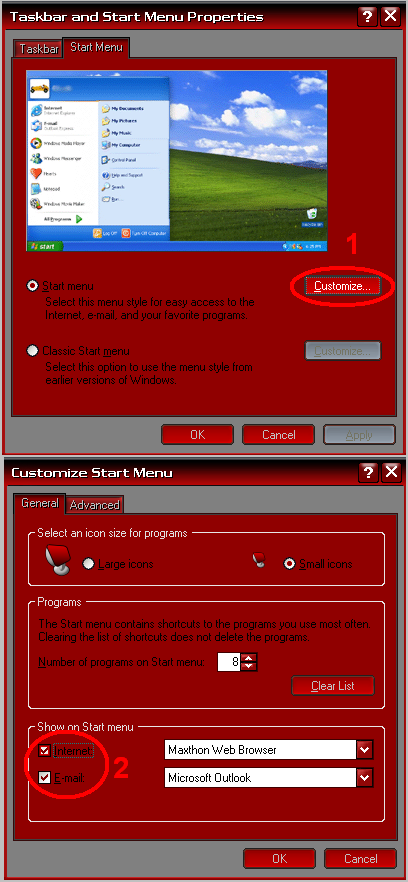
How to remove the Internet and Mail icons from the Start Menu with RegEdit

There’s always the easy way. by Right clicking and choosing properties on the start bar:
Just click away...

But here’s the quick and dirty… Create a .reg file with this content and apply it.
Windows Registry Editor Version 5.00

[HKEY_CURRENT_USER\Software\Microsoft\Windows
\CurrentVersion\Explorer\StartPage]
“Favorites”=hex:00
“FavoritesChanges”=dword:00000001
“FavoritesResolve”=hex:00,00,00,00,00,00,00,00

Scripters, here are the commands to do it from a batch file
[DOS]
:: Clear the pinned icons
REG ADD “HKCU\Software\Microsoft\Windows\CurrentVersion\Explorer\StartPage” /V “Favorites” /T REG_BINARY /D 00 /F
REG ADD “HKCU\Software\Microsoft\Windows\CurrentVersion\Explorer\StartPage” /V “FavoritesResolve” /T REG_BINARY /D 0000000000000000 /F
REG ADD “HKCU\Software\Microsoft\Windows\CurrentVersion\Explorer\StartPage” /V “FavoritesChanges” /T REG_DWORD /D 00000001 /F
[/DOS]